All guidesEvery day
Add a block
There are five ways to add a block. Use whichever is nearest to hand; they all make the same thing.
Step 1: Tap + and say it in one line
Tap + at the top of the screen. The New block form opens with the cursor in the name box.
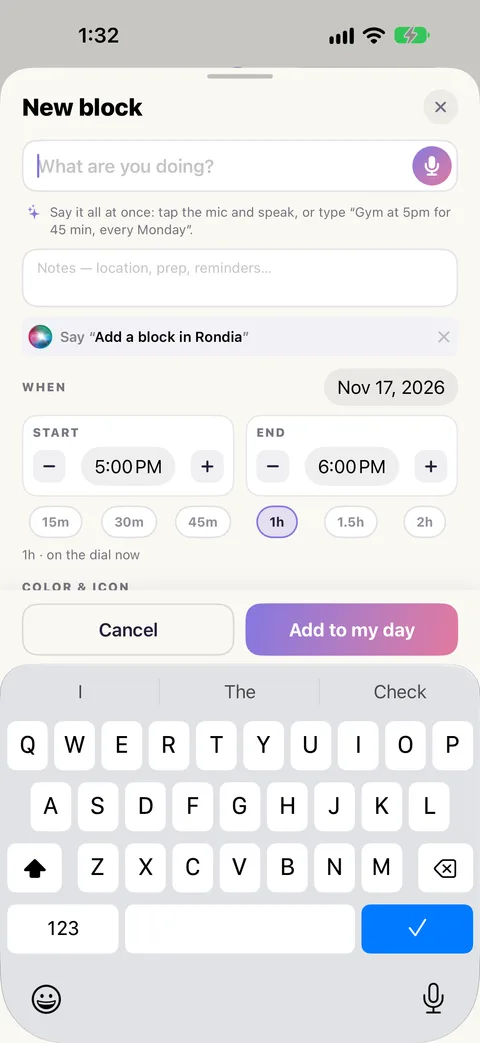
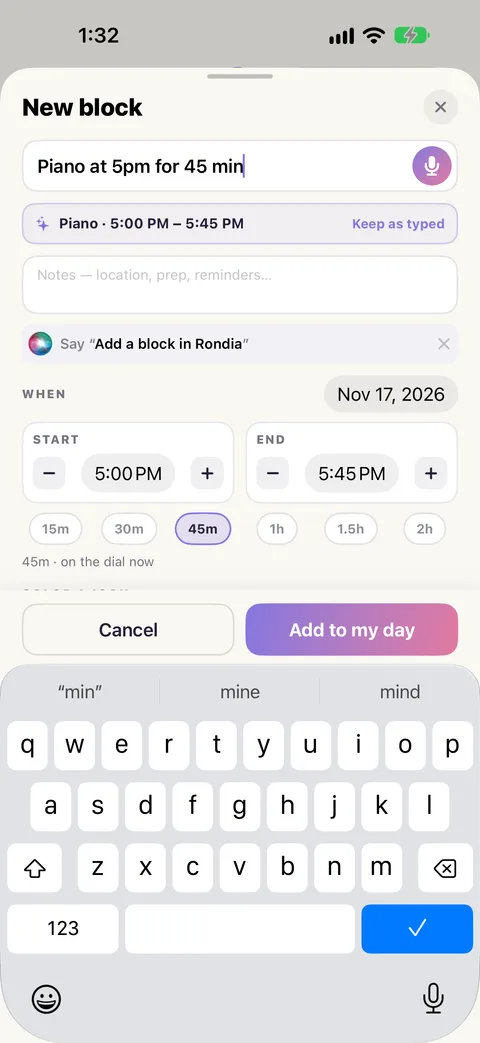
Type the whole thing as you would say it:
Piano at 5pm for 45 min
Under the box Rondia reads it back, "Piano · 5:00 PM – 5:45 PM", and the Start, End and length below change to match. Tap Add to my day.
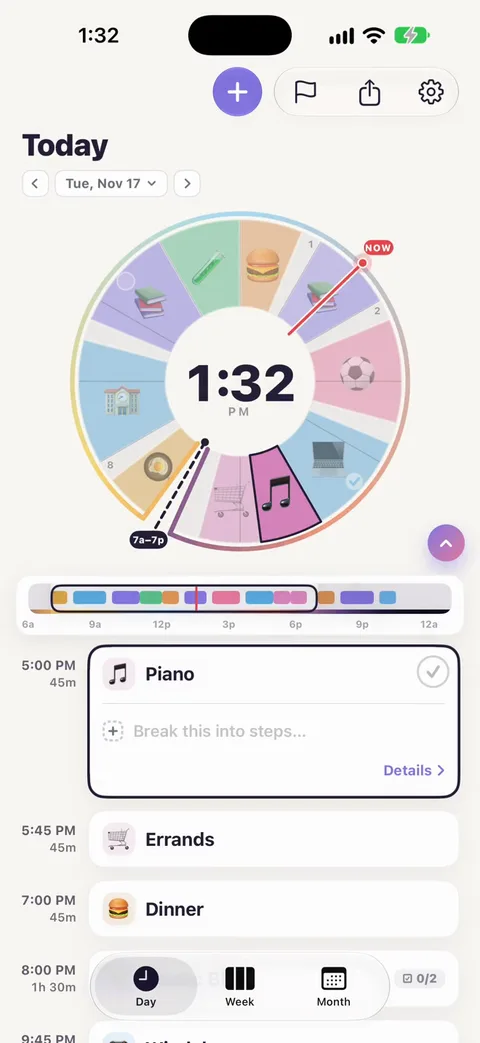
The block is saved as "Piano". The time words are taken out of the name.
What you can say in the line
| You want | Type or say |
|---|---|
| A time | at 5 · 5pm · 17:00 · noon |
| A start and an end | 3-4pm · from 9 to 5 |
| A length | for 45 min · 1h 30m · for an hour and a half |
| A day | today · tonight · tomorrow · Friday · on Sat |
| A repeat | every Monday · every Mon, Wed and Fri · every weekday · weekends · every day |
So "Dentist tomorrow 3-4pm" and "Swim every Tuesday and Thursday at 4 for an hour" both work.
Step 2: Say it out loud
In the New block form, tap the microphone at the end of the name box. The first time, your iPhone asks whether Rondia may use the microphone and speech recognition.
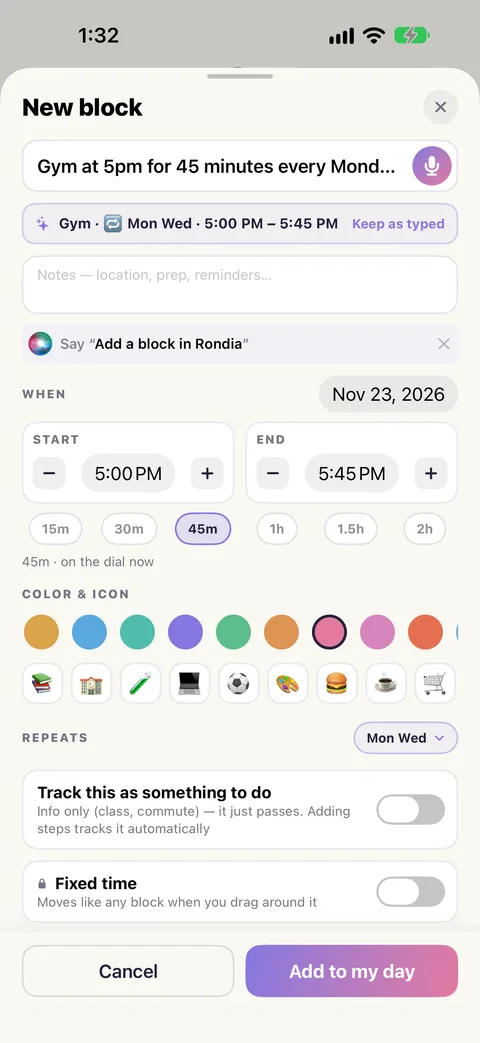
Then say the same kind of sentence: "Gym at five PM for forty-five minutes, every Monday and Wednesday." The form fills in while you talk. It stops by itself when you stop, or tap Done.
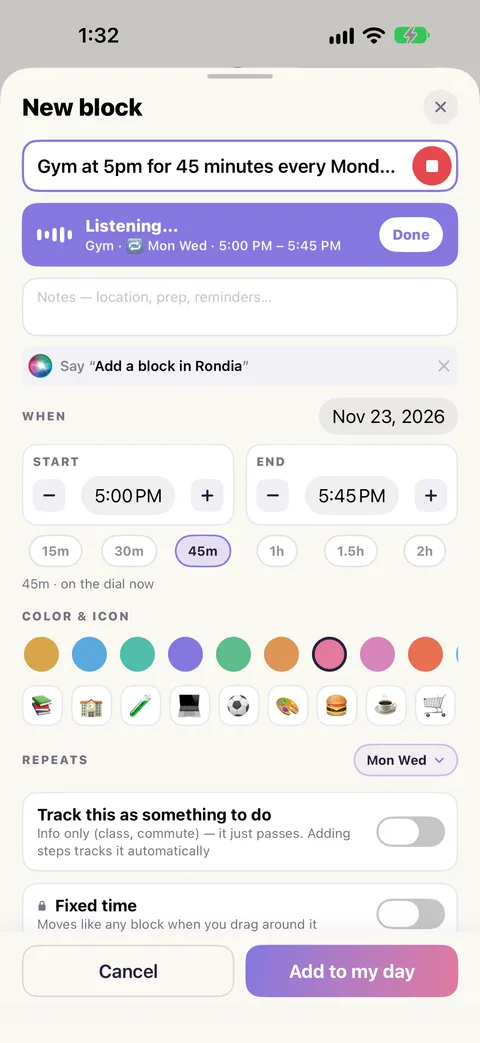
Check it, then tap Add to my day.
Step 3: Tap the dial
Tap an empty part of the dial. The New block form opens with the start already set to the time you tapped, an hour long or up to whatever comes next. Name it and tap Add to my day.
This is the quickest way to fill a gap you can see.
Step 4: Fill in the form by hand
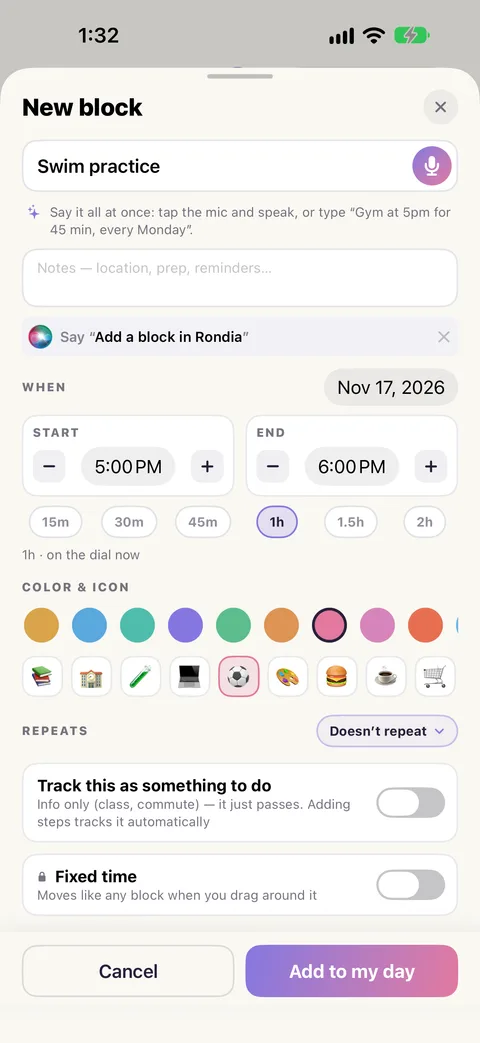
Everything the one-line box does can be set below it:
- When: tap the date to put the block on another day.
- Start and End: tap a time to change it, or use − and + to nudge it 5 minutes.
- Length: one tap for 15m, 30m, 45m, 1h, 1.5h or 2h.
- Color & icon: Rondia picks both from the name ("Lunch" gets a burger). Tap another to change it.
- Repeats: see Things that repeat.
- Track this as something to do: switch on for blocks you want counted in the day's score.
- Fixed time: switch on for things that cannot move, like a class. See Move things around.
Step 5: Ask Siri
Say "Add a block in Rondia". Siri asks what you are doing, when, and for how long, then adds it. You do not need to open the app. The same action is in the Shortcuts app.
If it says "No room at that time"
The day is full around that time and nothing can shift to make space. Choose another time, make the block shorter, or move something else first.