All guidesGo further
Rondia and your calendar
Your calendar holds the things other people decided: the dentist, the school concert, the team meeting. Rondia holds what you plan to do with the rest of the day. They work together, and all of it is optional.
The one idea to keep: calendar events can be messy and overlap; your own blocks never do. Events stay put, and your plan flows around them.
Part 1: See your calendar on the dial
Step 1: Turn it on
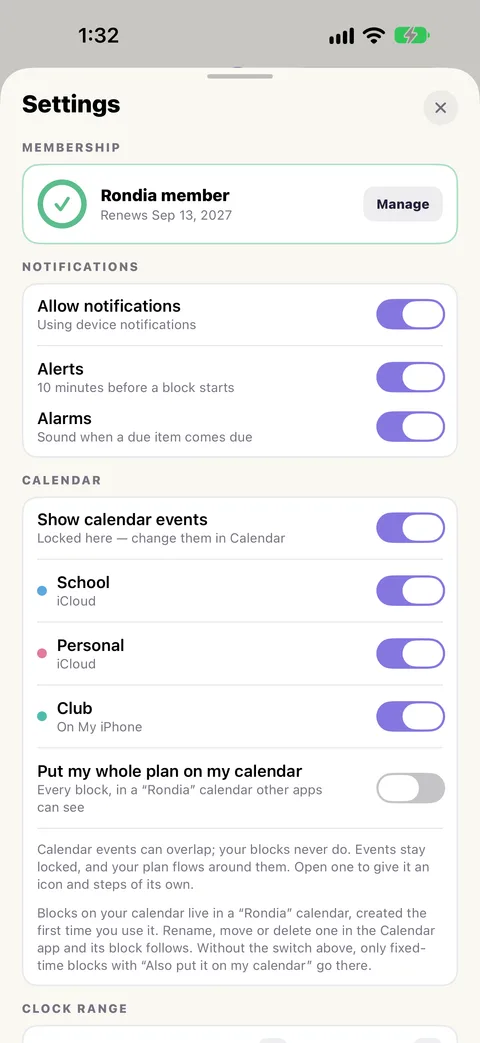
⚙ Settings › Calendar › Show calendar events. Your iPhone asks whether Rondia may read your calendar. Tap to allow.
Step 2: Choose which calendars
Under the switch is a list of your calendars. Switch off the ones you do not want on your day (birthdays, a shared work calendar).
Step 3: Read them on the dial
Events sit on the inner half of the ring, outlined in their calendar's colour, with a small calendar symbol and their name. Your own blocks fill the whole ring, so you can always tell the two apart. In the list, events are the cards with an orange edge.
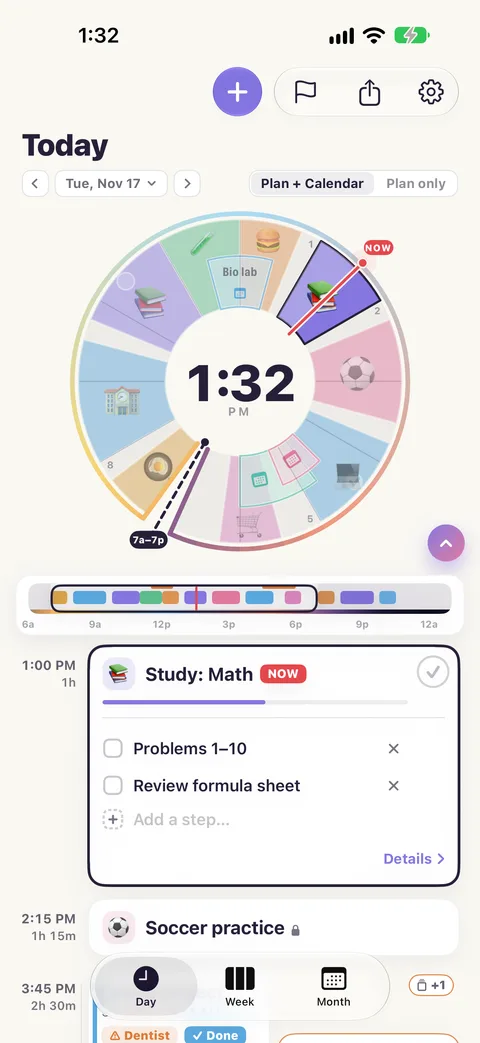
Two events at the same time nest inside each other. An all-day event shows as a chip above the list.
Step 4: Plan around them
Events behave like fixed blocks. Drag one of your blocks toward an event and it stops at the event's edge, or hops to the far side.
If an event lands on top of a block you had already planned, Rondia does not move your block behind your back. It marks the block "overlaps …". Open the block's Details and tap Fit around to let Rondia move it clear.
Step 5: Hide them when you want to
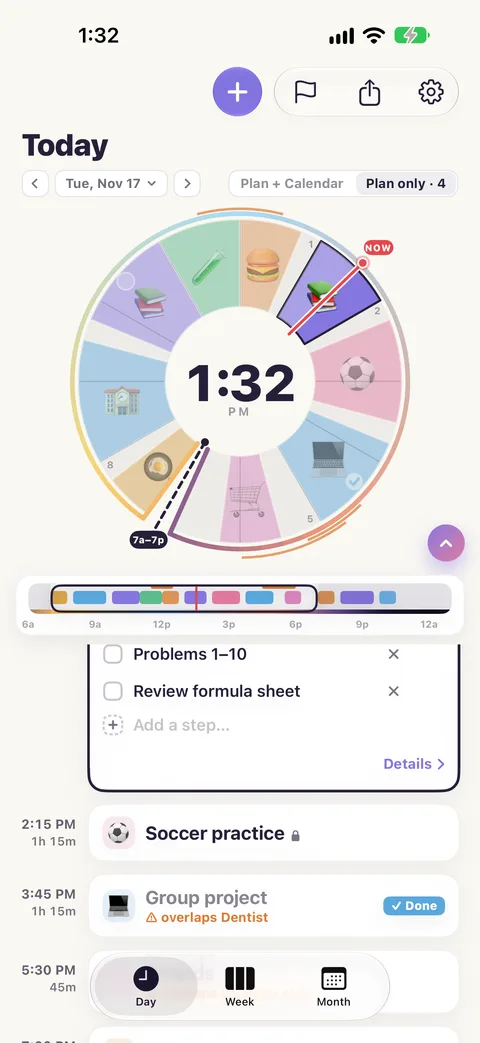
Beside the date are two buttons: Plan + Calendar and Plan only. Plan only clears the events out of the ring and the list, leaving a thin orange mark at the rim so you still know they are there.
Step 6: Give an event your own steps
You cannot rename or move a calendar event in Rondia. It belongs to your calendar. But you can make it yours: tap the event, pick an icon, and add steps ("Pack lab coat"). Tick them like any block's.
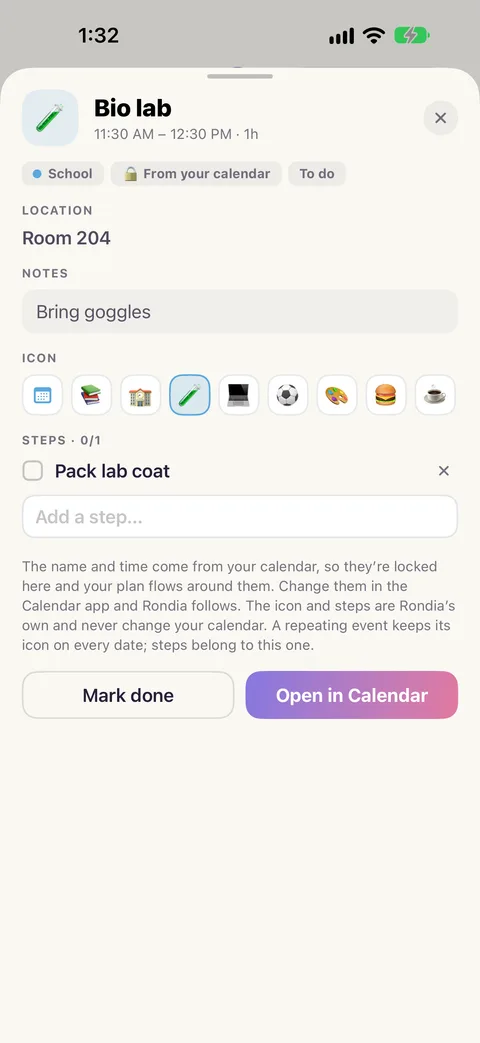
To change the event itself, tap Open in Calendar.
Part 2: Put your plan on your calendar
Want your blocks to show in the Calendar app, on your Mac, or in a calendar you share with family?
One block
Edit the block, switch on Fixed time, then Also put it on my calendar. (Only fixed blocks can go one at a time: a block that moves whenever you drag would keep rewriting your calendar.)
Your whole plan
⚙ Settings › Calendar › Put my whole plan on my calendar. Every block is written to a calendar named Rondia, for the next eight weeks.
Changes come back
Change one of those events in the Calendar app and Rondia follows the next time you open it:
| In Calendar you… | In Rondia… |
|---|---|
| Rename the event | The block is renamed |
| Move or stretch it | The block takes the new time, and its neighbours make room |
| Move it to another day | The block moves to that day |
| Delete it | The block is removed, with an Undo |
Widgets and watch
Once Show calendar events is on, your widgets and your Apple Watch show the events too, with the same choices.
Turning it off
Switch off Show calendar events and the events leave the dial. Your plan is untouched. To take away access completely, go to your iPhone's Settings › Apps › Rondia.