All guidesEverywhere you look
A heads-up before each block
Rondia can tell you when it is nearly time for the next thing, so nobody has to watch the clock.
Step 1: Say yes when it offers
Rondia does not ask about notifications the moment you install it. The first day you have a block, a card above your list asks: "A heads-up before each block?" Tap Turn on, then Allow when your iPhone asks.
Step 2: Or turn it on in Settings
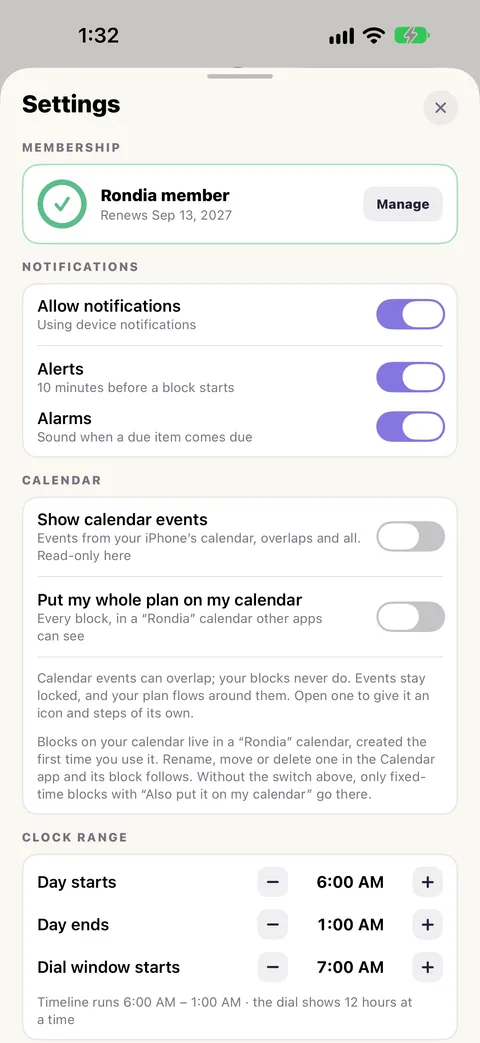
⚙ Settings › Notifications › Allow notifications. Then choose which you want:
- Alerts: a notification 10 minutes before each block starts, "Up next · Study: Math · 1:00 PM". Blocks you have already marked done are skipped.
- Alarms: a sound on the morning a due item comes due.
Step 3: On your wrist
If you wear an Apple Watch, it taps your wrist as each block starts.
If nothing arrives
- Your iPhone may have been told no. ⚙ Settings in Rondia says so and gives a link to the right page in your iPhone's Settings. Turn notifications on there.
- A Focus (Do Not Disturb, Sleep) may be holding them. That is the iPhone's doing: allow Rondia in that Focus if you want its alerts through.