All guidesGo further
Make it yours: settings
Tap ⚙ at the top of any screen. Settings is one page; here is what is on it, top to bottom.
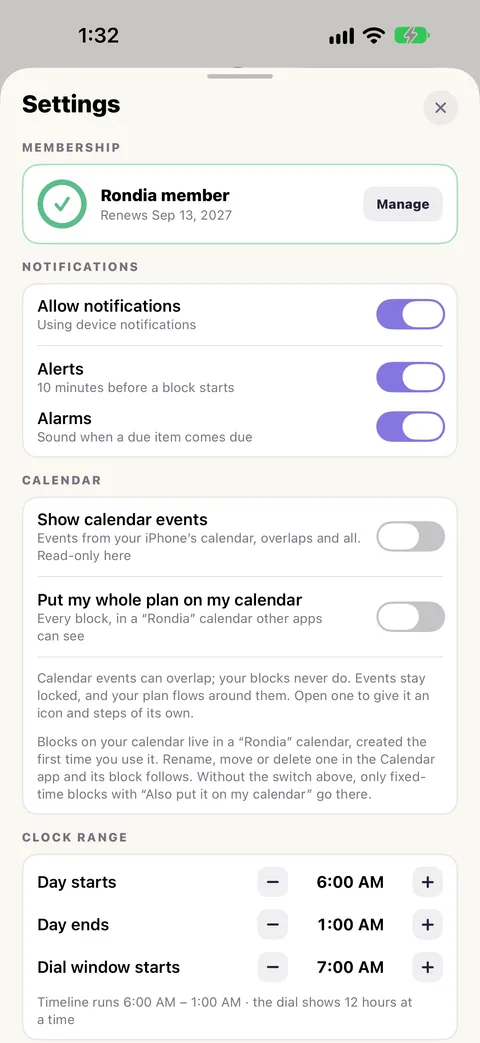
Membership
Where you stand: how many free days are left, or when your membership renews. Join, or Manage, is here. More about the membership.
Notifications
Allow notifications, then Alerts (10 minutes before a block) and Alarms (when something is due). A heads-up before each block.
Calendar
Show calendar events, which calendars, and Put my whole plan on my calendar. Rondia and your calendar.
Clock range
Your day is not everyone's day. Tell Rondia about yours.
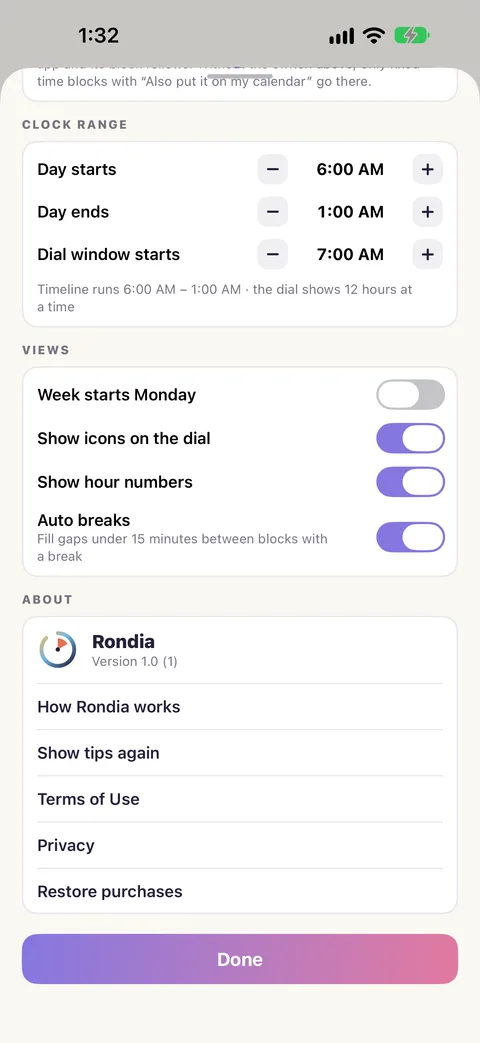
- Day starts and Day ends: the hours your day runs between. A day can end after midnight (1:00 AM, for the night owls). The hours bar under the dial covers this range.
- Dial window starts: which 12 hours the dial opens on. 7:00 AM shows 7 in the morning to 7 in the evening. An early riser might choose 5:00 AM.
Views
- Week starts Monday: for the Week and Month screens.
- Show icons on the dial: the little pictures on each block.
- Show hour numbers: the numbers on the dial, in the app, on widgets and on the watch.
- Auto breaks: whether Rondia fills short gaps between blocks with a break.
About
- The version of Rondia you have.
- How Rondia works: the introduction cards again.
- Show tips again: brings back the small tips on each screen, if you closed one too soon.
- What's new and Send feedback: open this website.
- Terms of Use and Privacy.
- Restore purchases: for a new phone, or after reinstalling.
Things that follow your iPhone
Rondia has no switch for these, because your iPhone already does:
Dark Mode: Rondia is dark when your iPhone is.
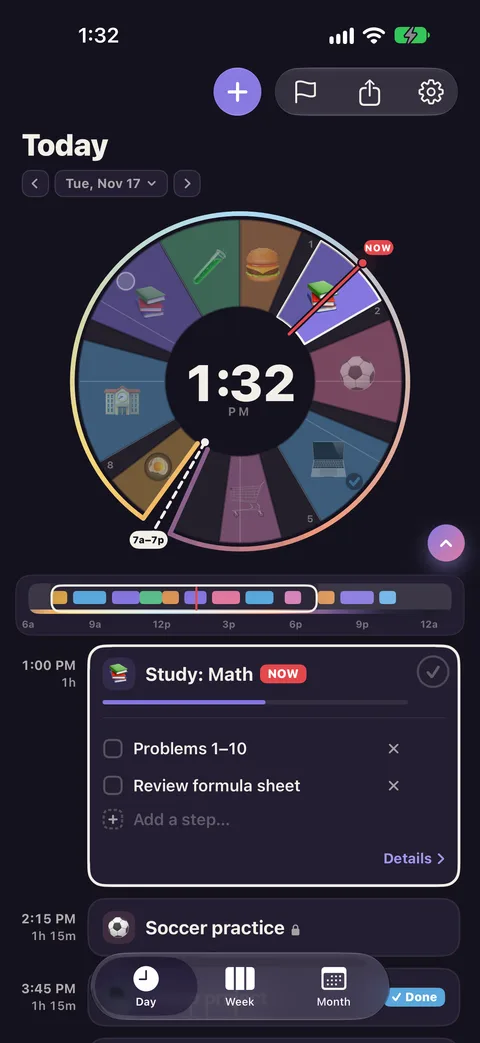
12 or 24-hour time: from your iPhone's Date & Time setting.
Text size: from your iPhone's Display & Text Size. More.